You’ve taken a MyHeritage DNA test and received your results. Opening them is an exciting moment, but it can also feel overwhelming, especially when you start to go through your DNA Matches. There could be thousands of them. Some are close, most are distant, and many have names you’ve never heard of. Initially, it can be exhilarating to see so many new potential leads and family connections. But once the excitement wears off, reality sets in: you have no idea how you’re related to most of these people. Where do you even start?
Key takeaways on labeling your DNA Matches
- DNA Matches become valuable when they are organized into structured groups
- Prioritizing matches with higher shared DNA (cM) leads to faster and more reliable discoveries
- A consistent labeling system helps avoid repeated work and confusion
- MyHeritage features like AutoClusters and Theory of Family Relativity™ support and guide your research
- Patterns across multiple matches are more meaningful than analyzing individual matches in isolation
- Over time, an organized system turns your DNA Matches into a powerful research asset
In this masterclass, we are moving beyond the “scroll and hope” method. We’re going to show you how to use MyHeritage DNA Labels to turn that overwhelming list into a precision-engineered research tool.
At this stage, it’s important to recognize that feeling overwhelmed is not a sign that you’re doing something wrong; it’s a sign that you haven’t yet applied structure. DNA results are inherently complex. Thousands of matches represent thousands of potential relationships, and without a system, your brain simply cannot track them. The goal of everything that follows is to reduce cognitive load. Instead of trying to remember everything, you will build a system that remembers for you.
Part 1: The pre-work audit (thinking like a pro)
Before you ever apply a label, you must perform what experts call a Match Audit. Labels are only useful if they’re accurate; a wrong assumption early on can undermine your entire project. This quick check acts as quality control, helping you build on a reliable foundation. It may feel slow, but spending an extra 20–30 seconds here can save hours of correction later.
The 5-point match check:
Before clicking that checkbox, look at these five metrics on the match card:
The amount of shared DNA (cM): This is your primary metric. A match of 100 cM is a solid lead; a match of 8 cM is a “maybe.” Professional genealogists usually focus their labeling efforts on matches above 30 cM first. A useful mental model is to treat high-cM matches as “anchors.” These are the people you can build certainty around. Once anchored, you can expand outward to smaller matches and place them relative to these stronger connections.
The longest segment: This is the secret weapon. You might share 50 cM with two different people. If Person A shares it in one long 50 cM block, they are a recent relative. If Person B shares it in ten tiny 5 cM blocks, they are likely a very distant relative from a community that didn’t move much (endogamy). This distinction becomes critical when your research reaches more advanced stages. Two matches with identical total cM can represent completely different genealogical distances. Ignoring segment structure is one of the most common sources of misinterpretation.
Shared Surnames: Does MyHeritage highlight a shared surname? That’s an immediate “Green Flag” for a label. However, always validate surnames with other data points. A surname alone is not proof, especially if it’s a common one. But repeated across multiple matches, it becomes a pattern. Patterns are what you are ultimately trying to identify.
Shared Places: Did their ancestors live in the same tiny village in Italy as yours? Even if the names don’t match yet, the location is a strong labeling signal. Geographic clustering is often overlooked. In many cases, location data reveals connections earlier than surnames do, especially in regions with common last names.
The tree size: A match with a family tree of 5,000 people is a goldmine for labels. A match with “0 people” requires more detective work. Larger trees increase the probability of overlap. Even if the connection is not immediately visible, it is more likely to emerge with additional exploration.
By the way, you can use the filtering and sorting features on MyHeritage to display the matches that meet the above criteria at the top of the list for easy labeling and identification.
Part 2: Mastering the labeling interface
MyHeritage offers one of the most flexible labeling systems in the industry, with up to 30 different colored labels. Think of these as your digital filing cabinet. Without labels, your matches exist as a flat list. With labels, they become a layered system. This shift from flat to structured is what allows real progress to happen.
Creating your system
When you open the Label Manager (by clicking the checkbox on the top-left of any match), you have a blank slate. Professionals generally divide their 30 colors into “functional groups”:
- The Four Quadrants (Colors 1–4). These represent your four grandparent lines.
- Research Status (Colors 5–8). Labels like “In Progress,” “Need to Contact,” or “Dead End.”
- Specific Brick Walls (Colors 9–12). A label dedicated specifically to that great-great-grandfather who disappeared in 1890.
- Automated Tools (Colors 13–16). Labels for matches confirmed by “AutoClusters” or “Theory of Family Relativity.”

This structure ensures that every label has a purpose. Random labels create clutter. Purposeful labels create clarity. Over time, your labeling system becomes a visual map of your research progress.
Bulk actions and efficiency
The real “meat” of the tool is the ability to label in bulk. If you identify a group of 50 people who all share DNA with your confirmed 2nd cousin, don’t label them one by one. Check the boxes for all of them, open the Label Manager, and hit “Apply.” This turns a three-hour task into a thirty-second one.
Part 3: The Leeds Method (A technical deep dive)
If you really want to take a step forward, you should consider learning about the Leeds Method. Created by Dana Leeds, this is a sorting technique that groups matches based on their shared ancestors. On MyHeritage, labels make this process incredibly visual.
Step-by-step technical workflow:
- The Setup: Filter your match list. Set the parameters to show only matches sharing between 90 cM and 400 cM. Why this range? Below 90 cM, you get too many “noise” matches that are hard to place; above 400 cM, the matches are usually too close (siblings, aunts/uncles) and will overlap across all your branches, making sorting difficult.
- The First Color (The “Seed”): Pick the first person on this list. Let’s say their name is “Alice.” Create a Red Label and name it “Group 1.” Assign it to Alice.
- The Shared Match Expansion: Click on Alice’s profile and scroll down to “Shared DNA Matches.” These are people who match both you and Alice. Check the box for every person on this shared list and give them the Red Label.
- The Second Color: Go back to your main list. Find the first person who does not have a Red Label yet. Let’s call him “Bob.” Create a Blue Label and name it “Group 2.” Repeat the process: go to Bob’s Shared Matches and label them all Blue.
- The Reveal: Repeat this until everyone in the 90–400 cM range has a color. Ideally, you will end up with four colors. These correspond to your four pairs of great-grandparents.
What if someone has two (or more) colors? This is where you think like an expert. If a match is both Red and Blue, it means they are likely related to you further back in time, or your ancestors from those two branches lived in the same tight-knit community.

While the Leeds Method is powerful, it is best understood as one framework among many. The real takeaway is not the method itself, but the concept: grouping matches based on shared relationships. Once you understand that concept, you can apply it flexibly in different scenarios.
Part 4: Advanced strategy: The “big three” integration
Expert users don’t just label manually; they use MyHeritage’s algorithms to do the heavy lifting.
1. AutoClusters as a labeling map
The AutoCluster tool is a miracle of data visualization. It groups your matches into “social circles” of DNA.
- The Pro Move: Once your AutoCluster report is generated, look at the largest cluster. Find the “Key” match in that cluster. Go to your DNA list, find that person, and label them with a color that matches the cluster’s color.
- Why? Now, whenever you look at your list, you are seeing a “live version” of your AutoCluster.
2. Theory of Family Relativity™ (TOFR)
TOFR is MyHeritage’s “best guess” at your relationship based on millions of trees.
- Labeling “truth”: Create a label called “Verified Theory.” When the tool suggests you are 3rd cousins through a specific ancestor, check the records. If it’s true, confirm and label them. This separates “confirmed science” from “theoretical leads.”

3. The Chromosome Browser (Triangulation)
For those ready for the “Master” level, use labels to mark triangulated groups.
- If you find three people who all share the exact same segment of DNA on Chromosome 7, label them “Chr 7 – Triangulated.” This proves you all inherited that specific piece of DNA from the same specific ancestor.
These tools should not replace your analysis; they should support it. The most effective researchers use automation as a guide, then validate results manually. This balance between automation and verification is what leads to reliable conclusions.
Part 5: Solving specific mysteries
Case Study 1: Finding a Biological Parent or Unknown Grandparent
When a branch of your tree is a total blank, the match list is your only map.
- The Strategy: Label every match you know in one color family (e.g., all Blues/Purples for your mother’s side).
- The Discovery: Any high-cM match (200 cM+) that has zero labels is a direct lead for the unknown parent. Create a “Top Secret” label for this group. By looking at the Shared Surnames of this “unlabeled” group, you might find the surname of the missing parent.
Case Study 2: Breaking a 19th century brick wall
Suppose your great-great-grandfather, Lars Larson, appears in the 1880 census but you haven’t been able to find any other historical record associated with him.
- The Strategy: Find all matches who descend from Lars’s known children. Label them “The Lars Group.”
- The “Shared Match” Trick: Look for people who match “The Lars Group” but not your other family lines. These people likely descend from Lars’s siblings. By researching their trees, you’ll find Lars’s parents and the village he came from.

If you find yourself unsure how to proceed, return to a specific question. DNA research becomes significantly easier when you are solving a defined problem rather than exploring aimlessly.
Part 6: Dealing with endogamy (The “tangled web”)
In communities like Ashkenazi Jews, Acadians, or Finns, people married within the same group for centuries. This causes “DNA Pile-ups.” You might share 100 cM with someone, but you’re only 5th cousins.
How to label in endogamous populations:
- Ignore the total cM: Focus on the longest segment. If the longest segment is under 20 cM, the match is likely “old” DNA and won’t help you solve recent brick walls.
- Label for “multiple lines”: An expert knows that in these groups, a match can be a cousin on both your mother’s and father’s side. Don’t be afraid to apply two different color labels to one person. This visual “double-label” reminds you to be careful with your calculations.

In these scenarios, patience is critical. Patterns may take longer to emerge, and conclusions require more supporting evidence. Avoid rushing — complexity requires a slower, more deliberate approach.
Part 7: Research hygiene and ethics
Genealogy is not just about data; it’s about people. Your labels are your private research notes, and they should be handled with care.
Maintaining your digital “lab”
- The “Dead End” Label: If you’ve spent 10 hours researching a match and found they aren’t related in the way you thought, label them “Researched – No Link.” This prevents you from wasting another 10 hours on them next year.
- The “NPE” (Non-Parental Event) Label: Sometimes you discover a match that shouldn’t exist, like a half-sibling you didn’t know about or a cousin who doesn’t match the family patriarch. Use a discreet label for these cases (like a specific shade of grey) to mark matches that require sensitive handling.
Your labeling system is private, but the implications are not. Always assume that your conclusions may affect real people. Accuracy and discretion should guide every decision.
Part 8: The art of the outreach
Organization is the prep work; communication is the payoff. Once you’ve labeled your “VIPs” (the Starred matches), it’s time to reach out.
The expert’s message template:
“Hi [Name], I see that we are DNA matches sharing 150 cM. I’ve noticed we both share the Miller surname from Ohio. I have my branch documented back to 1840; do you have a moment to see if our lines connect?”
Why this works:
- It mentions the specific cM (showing you know what you’re talking about).
- It mentions a specific surname and location.
- It offers a “give” (your documentation) rather than just a “take.”
Outreach is often the turning point in research. A single reply can confirm months of work. Focus on clarity, specificity, and mutual benefit when reaching out.
Part 9: Your 10-day masterclass roadmap
- Day 1: Audit your top 50 matches. Use the 5-point check.
- Day 2: Create your “foundational” labels (maternal/paternal).
- Day 3: Run the Leeds Method (90–400 cM).
- Day 4: Identify your “stars” (VIP matches).
- Day 5: Run an AutoCluster and sync the colors to your labels.
- Day 6: Tackle your #1 brick wall using the “Lars Larson” strategy.
- Day 7: Audit your “Theory of Family Relativity” suggestions.
- Day 8: Use the Chromosome Browser to find one triangulated group.
- Day 9: Send 5 targeted messages to Starred matches.
- Day 10: Review and “clean” your labels. Delete what’s not working.
Treat this roadmap as iterative, not linear. You may revisit earlier steps multiple times as new information becomes available.
How to apply labels on MyHeritage
Watch the video and see the instructions below to learn how to apply labels on MyHeritage:
Creating and assigning DNA labels
To create and assign a DNA label to a match on your DNA Match list, tick the box that appears on the upper left corner of the match card. This will open the label manager panel on the right.
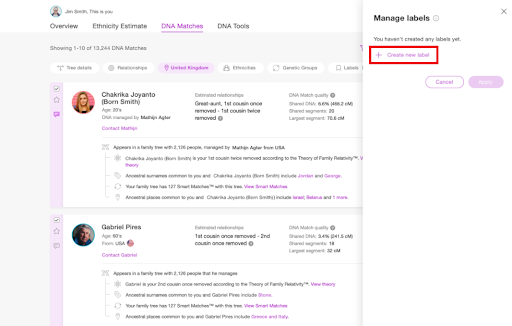
Click “Create new label.”
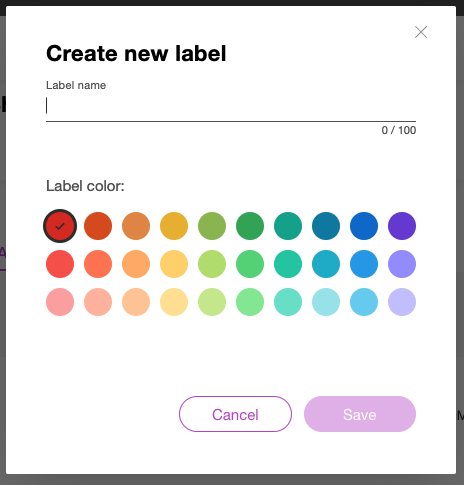
In the pop-up that opens, enter a name and select a color for your label. Then click “Save.”
To assign the new label to the DNA Match you selected, make sure the box next to the label is ticked, and click “Apply.”
Editing and deleting labels
You can view, edit, and delete your labels in the label manager panel that opens whenever you tick the label checkbox on a DNA match. You’ll find this checkbox on the upper left corner of each match card on the DNA Match list as well as under the profile photo of Shared DNA Matches on the Review DNA Match page. You can also open the label manager panel from the top right corner of the Review DNA Match page by clicking the label icon (if the match has no labels assigned to it yet) or the colored label dots that appear there.
Your labels will be listed in the label manager panel alphabetically:
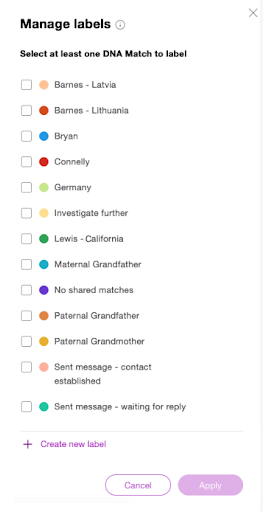
Hover over a label to reveal the “edit” (pencil) and “delete” (trash can) icons.
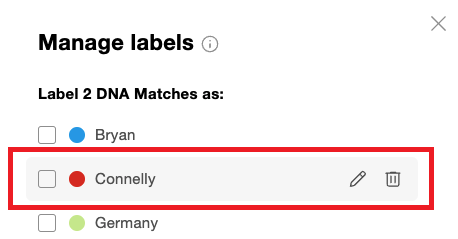
If you click the “edit” icon, you’ll be able to rename it and assign it a different color. Deleting a label will remove it from the list and from any matches that have been assigned it.
Assigning multiple labels
You can assign multiple labels to each match. Just tick the box on the label strip to open the label manager panel, select all the labels you want to assign that match, and click “Apply.”
The colors of the assigned labels will appear on the label strip to the left of each DNA match. You can hover over the colored dot to reveal the name of the associated label.
If more than 7 labels have been assigned to the same match, the first 7 labels will appear in the strip along with a number that indicates how many additional labels have been assigned to this match.
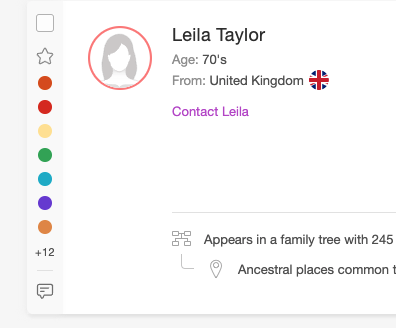
Assigning, removing, and editing labels in bulk
You can select multiple matches at once and assign, remove, or edit labels on all of them at the same time using the label manager panel. Simply tick the label checkbox on every match you wish to work with.
If none of the DNA Matches you’ve selected have been assigned a certain label, the checkbox that appears next to that label in the label manager panel will be empty. You can check this box and click “Apply” to assign this label to all the DNA Matches you’ve selected.
If all the matches you’ve selected already have been assigned a particular label, a check will appear next to it in the label manager panel. You can uncheck it to remove that label from all the selected matches, or check additional labels to assign to those matches.
If only some of the selected DNA Matches are associated with a particular label, the checkbox next to it in the label manager panel will contain a dash (-) to indicate partial selection. If you don’t wish to make any changes regarding this label, you can leave the dash as is. Tick the box to assign this label to all selected matches including those that didn’t have it before; or clear the box if you’d like to remove this label from all selected matches. If you tick or clear the box and then change your mind, you can click it again to toggle between the options.
Adding favorites
If there are DNA Matches in your list of particular interest, instead of assigning a label, you can “favorite” them by clicking the star icon on the left-hand label strip.
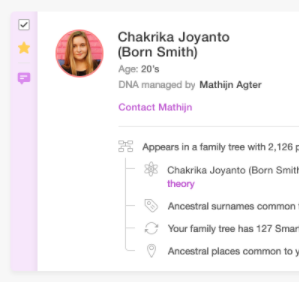
The “favorite” star also provides a quick option for marking labels you want to look into later without creating a new label.
Filtering by labels
To filter your list of DNA Matches by your labels, click the “Filters” button on the top right corner of the DNA Match page, and then the “Labels” filter menu. Select the labels you wish to view and/or Favorite DNA Matches, and click “Apply.”
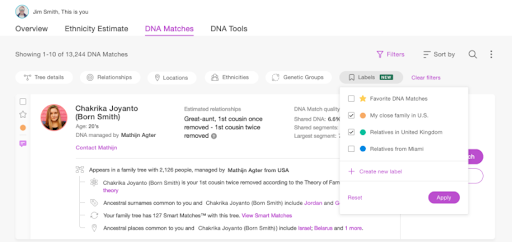
Key DNA terms explained
- Centimorgan (cM): A unit of recombinant frequency; effectively, how much DNA you share.
- DNA segment: A continuous string of DNA shared between two people.
- DNA match: People who share DNA with you.
- NPE: Non-Parental Event; when the biological father is not the presumed father.
- Triangulation: The process of using three or more matches to prove a common ancestor.
- Endogamy: The practice of marrying within a specific social group, causing “inflated” DNA matches.
Conclusion: Building your legacy
Genealogy is a marathon, not a sprint. Every week, new people take DNA tests and appear on your list. Without a labeling system, you are like a detective who throws all their clues into a shoebox. With labels, you are building a database that grows more powerful with every new match. By using this labeling system, you aren’t just organizing names; you are reconstructing the history of your family, one colored dot at a time. The answers to your biggest family mysteries are already in your match list; you just need the labels to see them.
Over time, your labeled matches evolve into a structured system that continuously improves. Each new match strengthens existing patterns rather than adding confusion. This is the shift from data collection to insight generation. What will you discover from your DNA matches?
FAQs about organizing your DNA Matches with Labels
What are DNA Matches on MyHeritage?
DNA Matches are people who share segments of DNA with you, indicating a possible family relationship. These connections can help you discover relatives, confirm branches of your family tree, and explore your family history in more detail.
How many DNA Matches should I focus on first?
Start with matches sharing 30 cM or more. These are more likely to represent meaningful relationships and provide clearer clues. Once you’ve built a strong foundation, you can expand your research to more distant matches.
What is the best way to organize DNA Matches?
The most effective way to organize DNA Matches is by using labels. Labels allow you to group matches by family line, research status, or specific research questions. Over time, this creates a structured system that helps you identify patterns and avoid repeating work.
How do I know if a DNA Match is important?
A DNA Match is more likely to be useful if it has a higher shared DNA value (cM), if it includes a detailed family tree, if it shares surnames or locations with your family, and if it appears in shared match groups with other known relatives. Looking at these factors together helps you prioritize effectively.
Can DNA Matches help me find unknown relatives?
Yes. DNA Matches are one of the most effective ways to identify unknown relatives. By grouping matches, analyzing shared connections, and identifying patterns, you can uncover missing branches of your family tree.
What is Theory of Family Relativity™?
Theory of Family Relativity™ is a MyHeritage feature that suggests possible relationships between you and your DNA Matches using family trees and historical records. These suggestions can guide your research, but should always be verified with additional evidence.
What are AutoClusters and how should I use them?
AutoClusters group your DNA Matches into clusters based on shared relationships. Each cluster often represents a branch of your family. You can use these clusters to quickly identify patterns and align them with your labeling system.
Why do some DNA Matches seem closer than they really are?
In populations with a history of intermarriage (endogamy), DNA can appear more similar than expected. In these cases, it’s important to focus on the longest shared segment and patterns across multiple matches, rather than relying only on total cM.
What should I do if a DNA Match doesn’t have a family tree?
Even without a tree, your DNA matches can still be useful when viewed as part of a larger pattern. If a match doesn’t have a tree, you can look at shared matches to place them in a group, analyze shared surnames and locations, and reach out directly and ask for more information
Is it worth contacting my DNA Matches?
Yes. Contacting matches can provide valuable context and help confirm relationships. A clear, specific message that mentions shared DNA, surnames, and locations increases the chances of a response.